ByteEditor Website Builder

Wiki menu

Create element

Following these instructions, you can create a new card for your elements gallery. You can recreate this element using the code snippets provided in the guide, or modify the steps to tailor it to your specific needs.

Expected result

Values

In order to create a new card, for example, Card With Icon Centered, we need a back office preview (a Lit custom view registered in an “umbraco-package.json” file), an element type, and a front-end view.


Step 1. Back office preview

  1. Open the project folder
  2. Open the “App_Plugins” folder
  3. Create a folder for custom blocks, for example, name “CustomBlockView”
  4. Create a file named “card-with-icon-centered.custom-view.js”
  5. Copy the following code and paste it into the file
import { html, nothing, LitElement } from '@umbraco-cms/backoffice/external/lit';
import { unsafeHTML } from '@umbraco-cms/backoffice/external/lit';
import { UmbElementMixin } from '@umbraco-cms/backoffice/element-api';
import { getGlobalStylesheetHrefs } from '/App_Plugins/UmbracoBlockGrid/BlockViews/shared/global-styles.js';
import { renderGlobalStylesheetLinks } from '/App_Plugins/UmbracoBlockGrid/BlockViews/shared/global-stylesheet-links.js';
import { resolveSingleMedia } from '/App_Plugins/UmbracoBlockGrid/BlockViews/shared/media-resolver.js';

export class CardWithIconCenteredCustomView extends UmbElementMixin(LitElement) {
    static properties = {
        content: { attribute: false },
    };

    #stylesheetHrefs = [];
    #image;

    // Render into the light DOM so the block uses the site's real Bootstrap and theme classes.
    createRenderRoot() {
        return this;
    }

    willUpdate(changedProperties) {
        if (changedProperties.has('content')) {
            this.#loadData();
        }
    }

    async #loadData() {
        const [image, stylesheetHrefs] = await Promise.all([
            resolveSingleMedia(this, this.content?.image, 'rmode=min&width=96'),
            getGlobalStylesheetHrefs(this),
        ]);
        this.#image = image;
        this.#stylesheetHrefs = stylesheetHrefs;
        this.requestUpdate();
    }

    render() {
        const variantValue = this.content?.themeVariant;
        const variant = Array.isArray(variantValue) ? variantValue[0] : variantValue;
        const linkValue = this.content?.link;
        const link = Array.isArray(linkValue) ? linkValue[0] : linkValue;
        const richTextValue = this.content?.richText;
        const richText = (typeof richTextValue === 'string' ? richTextValue : richTextValue?.markup) ?? '';
        const buttonClass = this.content?.variant === 'Secondary' ? 'btn-outline-primary' : 'btn-primary';

        return html`
            ${renderGlobalStylesheetLinks(this.#stylesheetHrefs)}
            <div class="be-preview card-feature-sm card-border-radius text-break d-flex flex-column align-items-center ${variant ? `be-v-${variant} p-5` : ''} ${this.content?.customCssClasses ?? ''}">
                ${this.#image
                    ? html`<div class="img-holder mb-4"><img src=${this.#image.url} alt=${this.#image.name ?? ''} /></div>`
                    : nothing}
                <h3 class="h5 mb-3">${this.content?.headline ?? ''}</h3>
                <div class="text-holder">${unsafeHTML(richText)}</div>
                ${link?.name ? html`<a class="btn d-inline-block ${buttonClass} btn-md mt-4">${link.name}</a>` : nothing}
            </div>
        `;
    }
}

customElements.define('custom-card-with-icon-centered-view', CardWithIconCenteredCustomView);
export default CardWithIconCenteredCustomView;

6. Create a file named “umbraco-package.json” in the “CustomBlockView” folder. If you followed the Create layout guide, you already have this file: add the new extension to its “extensions” list instead.
7. Add the following JSON to the file:

{
  "name": "Custom Block Views",
  "version": "1.0.0",
  "extensions": [
    {
      "type": "blockEditorCustomView",
      "alias": "Custom.BlockGrid.CardWithIconCentered",
      "name": "Card With Icon Centered Block View",
      "element": "/App_Plugins/CustomBlockView/card-with-icon-centered.custom-view.js",
      "forContentTypeAlias": "cardWithIconCenteredBlock",
      "forBlockEditor": "block-grid"
    }
  ]
}

💡 There is no build step: Umbraco 17 loads these files directly. “forContentTypeAlias” must match the element type alias you create in Step 2. To learn more, see the Umbraco documentation on custom views for blocks.

Step 2. How to create an element in Umbraco

  1. Run your project locally where the ByteEditor 17.X package is installed.
  2. Open the “Settings” section.
  3. Expand “Document Types” → “Blocks”.
  4. Hover over the “Cards” folder, click '...' and choose “Create”.
  5. Select “Element Type”.
  6. Name it “Card With Icon Centered”.
  7. Click the icon next to the name and pick an icon for the card.
  8. Next to the name, change the alias from “cardWithIconCentered” to “cardWithIconCenteredBlock”.
  9. Click “Add group” and name the group “Content”.
  10. Add a property “Image” with the “Feature - Icon - Media Picker” property editor.
  11. Add a property “Headline” with the “Textstring” property editor and turn on “Mandatory”.
  12. Add a property “Rich Text” with the “Features List - Features - Rich Text Editor” property editor and turn on “Mandatory”.
  13. Add a property “Link” with the “Feature - Link - Multi URL Picker” property editor.
  14. Add a property “Button Variant” with the “Button - Variant - Radio button list” property editor, and change its alias from “buttonVariant” to “variant”.
  15. Click “Compositions”, and under “Blocks/Compositions” select “Section Settings” and “Section Custom CSS for elements”.
  16. Click “Submit”, then “Save”.

Step 3. How to add element to the Block Grid

  1. Open “Settings” → “Data Types” → “Home - Main Grid - Block Grid”.
  2. Click “Add block” and choose “Card With Icon Centered”.
  3. Put it in the “Cards” group.
  4. Turn off “Allow at root” and keep “Allow in areas” on.
  5. Under “Available column spans”, select 3, 4 and 6.
  6. Click “Submit”, then “Save”.

💡 Unlike Umbraco 13, there is no “Custom view” field on the block: the preview is picked up automatically from “umbraco-package.json” by the element type alias.

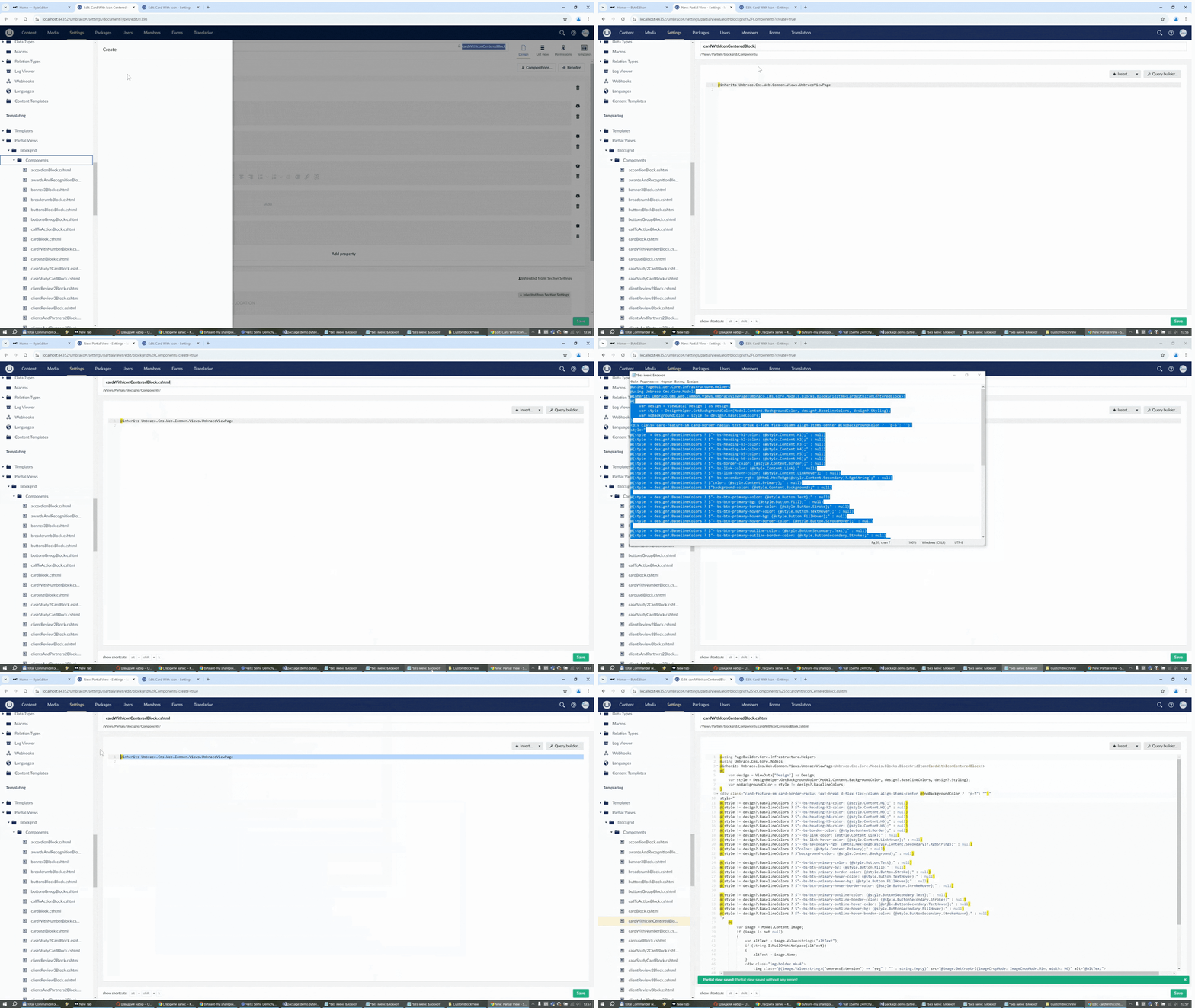
Step 4. How to create an element view on the front end

  1. In “Settings”, expand “Partial Views” → “blockgrid”.
  2. Hover over the “Components” folder, click '...' and choose “Create” → “Empty partial view”.
  3. Name it “cardWithIconCenteredBlock.cshtml”.
  4. Copy the following code and paste it into the file
@inherits Umbraco.Cms.Web.Common.Views.UmbracoViewPage<Umbraco.Cms.Core.Models.Blocks.BlockGridItem<CardWithIconCenteredBlock>>
@using Umbraco.Cms.Core.Models
@{
    var hasVariant = !string.IsNullOrWhiteSpace(Model.Content.ThemeVariant);
    var themeVariantClass = $"be-v-{Model.Content.ThemeVariant.IfNullOrWhiteSpace("base")}";
    var image = Model.Content.Image;
}
<div class="card-feature-sm card-border-radius text-break d-flex flex-column align-items-center @(hasVariant ? "p-5" : "") @Model.Content.CustomCssClasses @themeVariantClass">
    @if (image is not null)
    {
        <div class="img-holder mb-4">
            <img src="@image.GetCropUrl(imageCropMode: ImageCropMode.Min, width: 96)" alt="@(image.Value<string>("altText").IfNullOrWhiteSpace(image.Name))">
        </div>
    }
    <h3 class="h5 mb-3">@Model.Content.Headline</h3>
    <div class="text-holder">
        @Model.Content.RichText
    </div>
    @if (!string.IsNullOrWhiteSpace(Model.Content.Link?.Name))
    {
        <a class="btn d-inline-block @(Model.Content.Variant == "Secondary" ? "btn-outline-primary" : "btn-primary") btn-md mt-4" href="@Model.Content.Link.Url" target="@Model.Content.Link.Target">@Model.Content.Link.Name</a>
    }
</div>

5. Click “Save”
6. Restart the project so ModelsBuilder generates the “CardWithIconCenteredBlock” model
Create Element 4

Congratulations!

You have created your first element. Now you can add it to your design.


Built with ByteEditor